
Evil Genius Labs
Purveyor of finely hand-crafted pixels. ꩜
Purveyor of finely hand-crafted pixels. ꩜
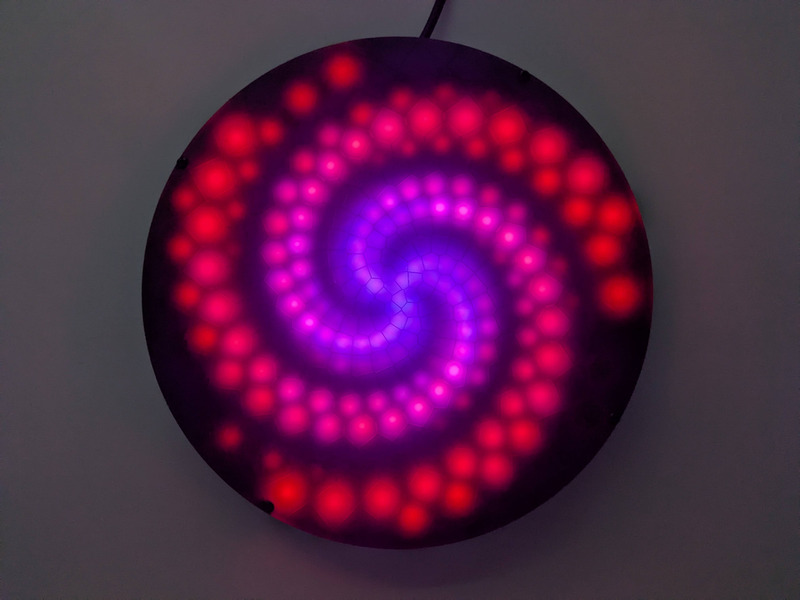
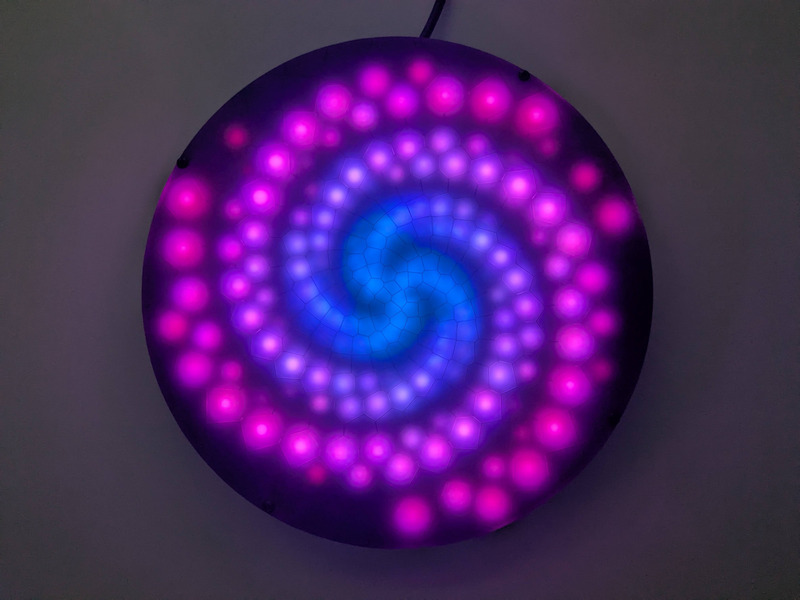
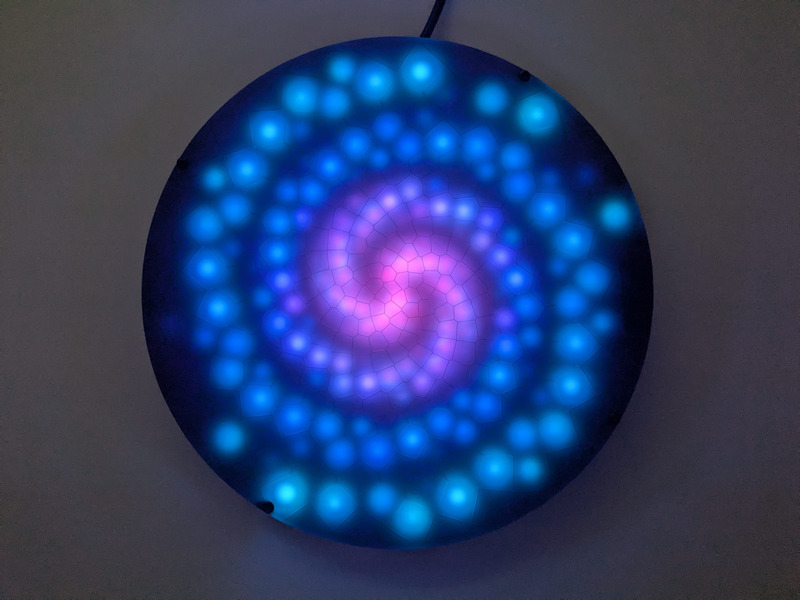
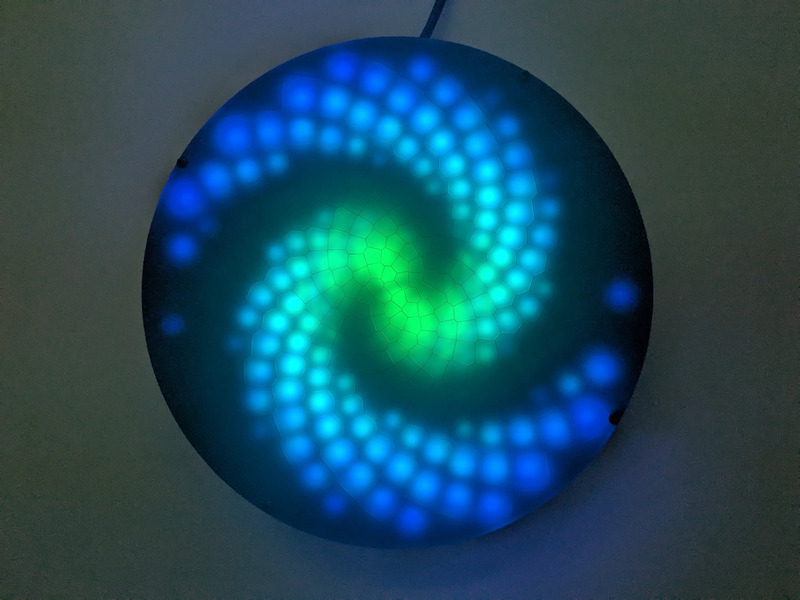
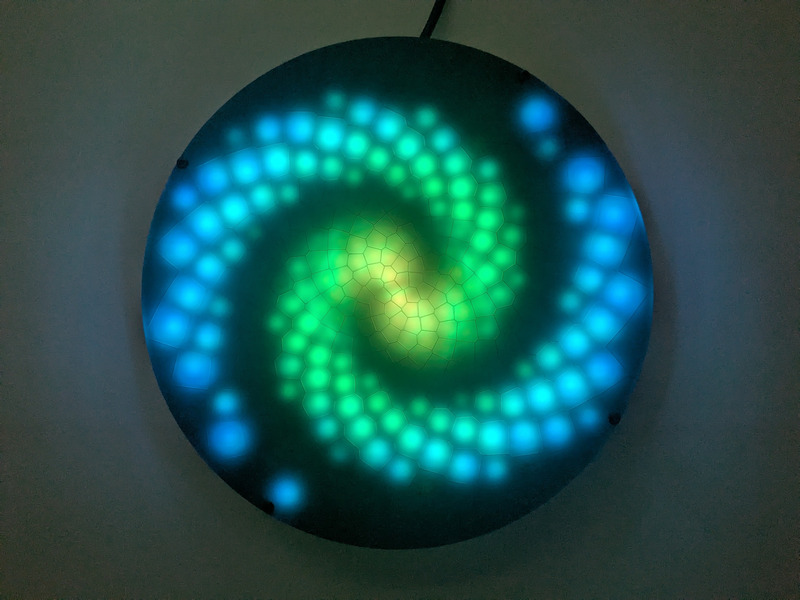
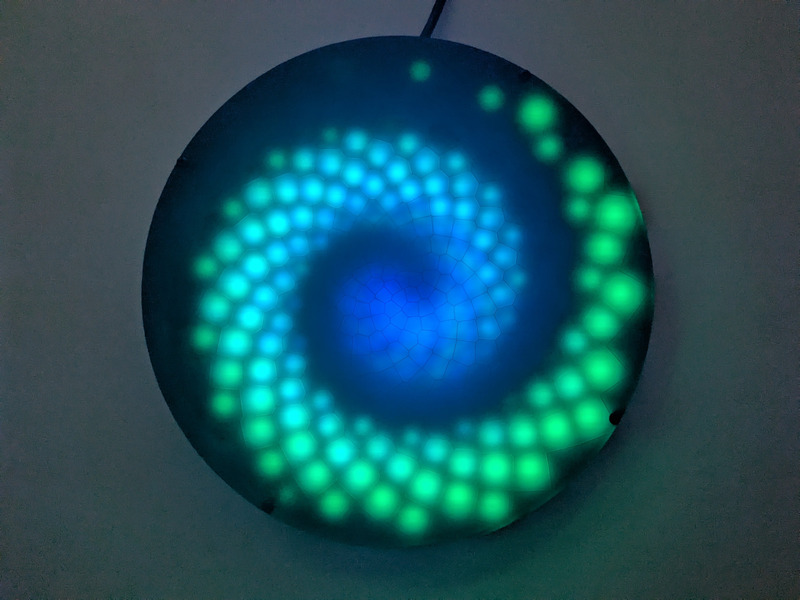

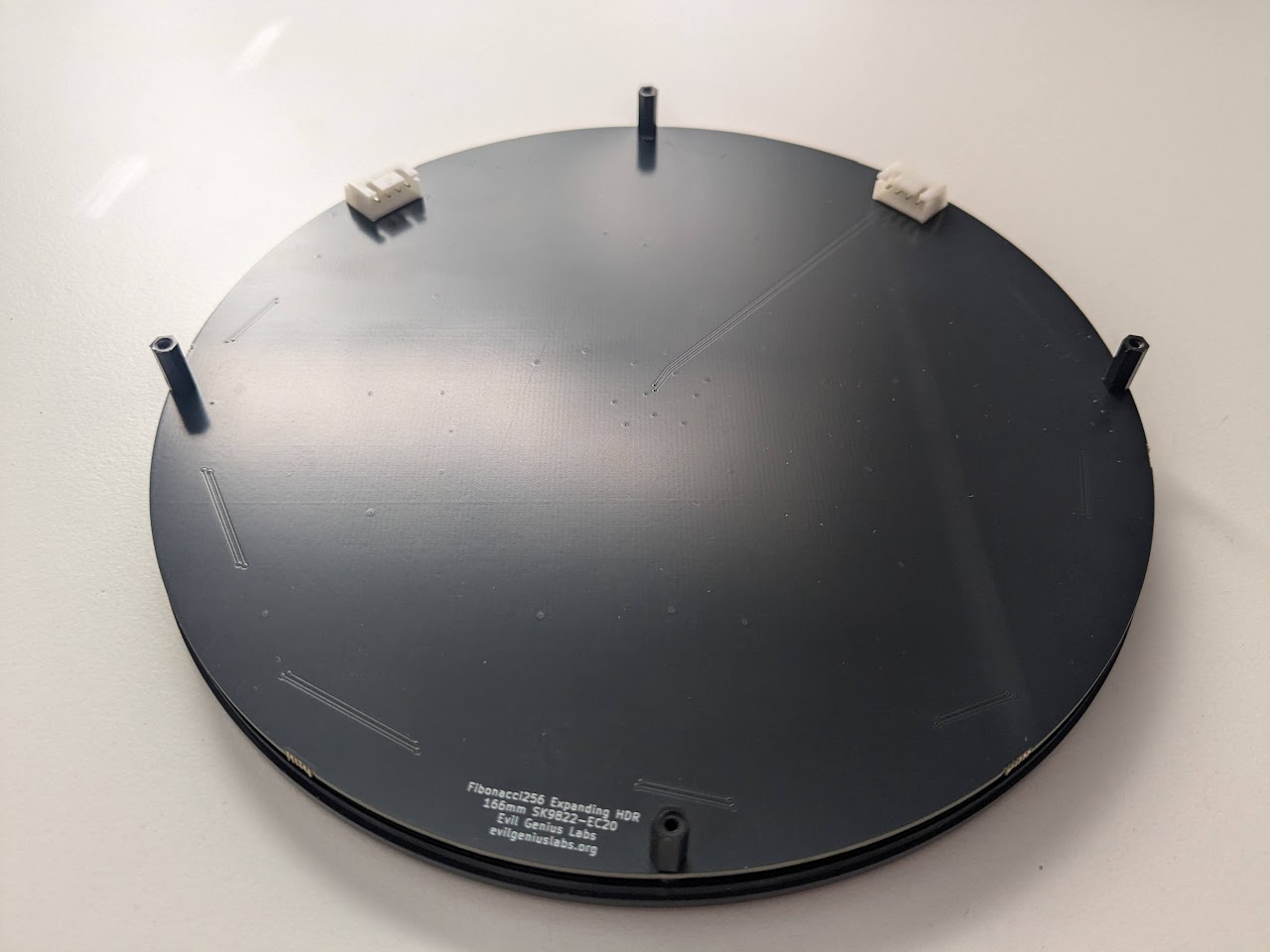
Fibonacci256 Expanding HDR is a beautiful 166mm circular disc with 256 RGB LEDs surface mounted in a Fibonacci layout. Swirling and pulsing like a colorful galaxy, it’s mesmerizing to watch.
The 256 SK9822-EC20 HDR RGB LEDs start out close together in the center and gradually get larger and further apart. This gives an illusion of expansion, especially with the right animation.
I have created several LED art pieces in Fibonacci patterns. They are all very labor intensive to create, and so are fairly expensive and limited in quantity. I wanted to come up with a Fibonacci layout that was at least slightly easier to create, and therefore more affordable.
I have RGB LEDs in just about every form they come: strips, strings, rings, discs, etc. The LEDs on most discs are arranged in very regular rings. Fibonacci256 is different. The LEDs are arranged in a Fibonacci distribution. The makes the layout very organic and seemingly messy. But with the proper animation, spiral patterns emerge with spectacular results.
In disc phyllotaxis, as in the sunflower and daisy, the mesh of spirals occurs in Fibonacci numbers because divergence (angle of succession in a single spiral arrangement) approaches the golden ratio. The shape of the spirals depends on the growth of the elements generated sequentially. In mature-disc phyllotaxis, when all the elements are the same size, the shape of the spirals is that of Fermat spirals—ideally. That is because Fermat's spiral traverses equal annuli in equal turns. The full model proposed by H Vogel in 1979[2] is


where θ is the angle, r is the radius or distance from the center, and n is the index number of the floret and c is a constant scaling factor. The angle 137.508° is the golden angle which is approximated by ratios of Fibonacci numbers.[3]
Fermat's spiral. (2015, October 24). In Wikipedia, The Free Encyclopedia. Retrieved 02:45, February 24, 2016, from https://en.wikipedia.org/w/index.php?title=Fermat%27s_spiral
Your Fibonacci should automatically play a playlist of pre-selected patterns endlessly.
For more control, you can connect to it via wi-fi.
To connect your Fibonacci to a wi-fi network:
If not already connected to a wi-fi network, your Fibonacci will create its own network named Pixelblaze_XXXXXXX, where XXXXX is a code unique to your Fibonacci. You should see it in the list of wi-fi networks available on a computer or mobile device:
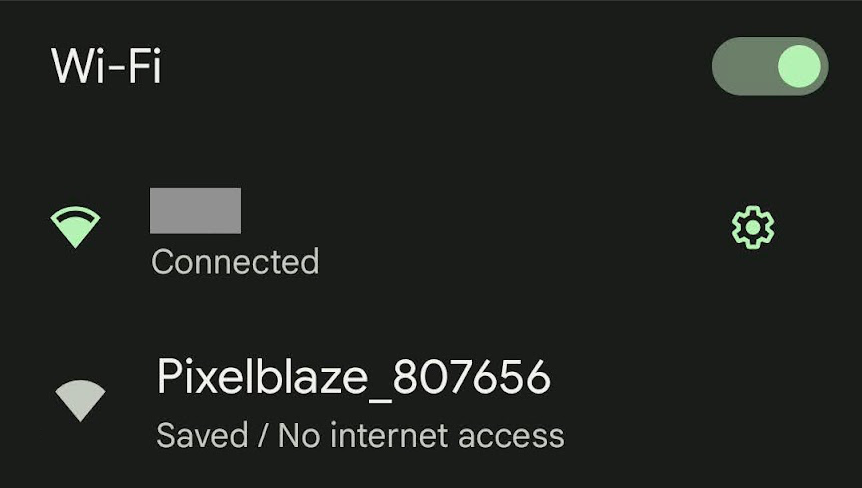
Note: If you can’t find the Fibonacci’s wi-fi network, it may not be in setup mode.
To put it in to setup mode:
You should see a pop-up and/or automatically get redirected to configure the Fibonacci’s wi-fi settings. If not, open a browser and go to http://192.168.4.1
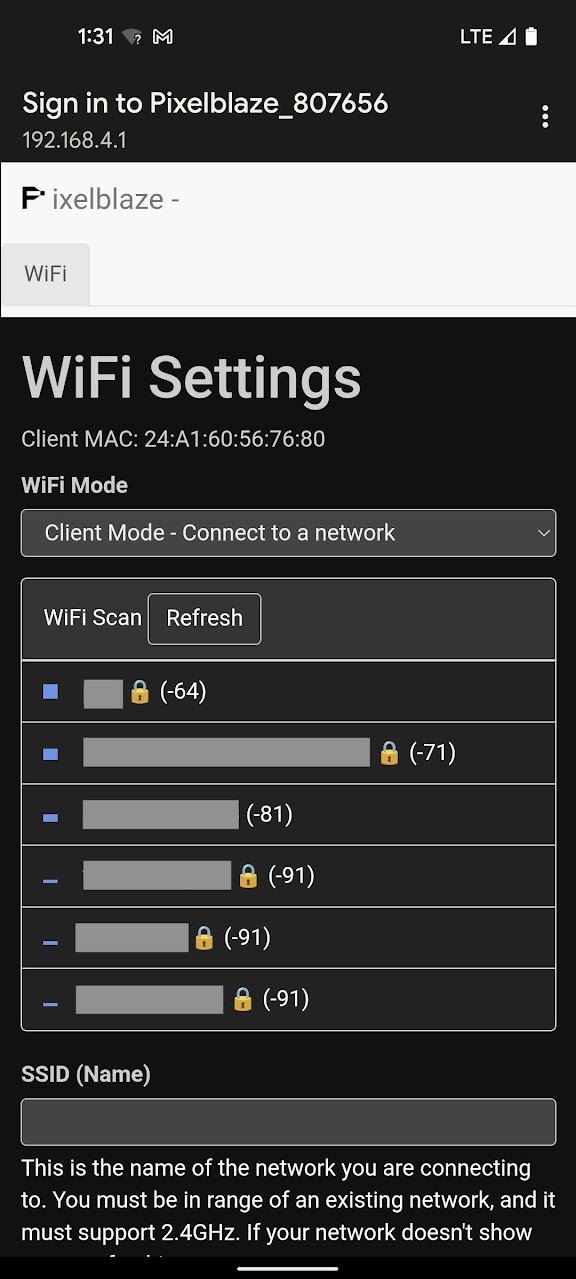
In WiFi Settings you an configure your Fibonacci to run in one of two modes:
Client Mode - Connect to a network
In this mode your Fibonacci can connect to an existing wi-fi network. Use this mode while at home or another location with an existing wi-fi network that you can connect to.
Choose the wi-fi network to which you’d like to connect, or enter the SSID (Name) if you know it, it’s hidden, etc.
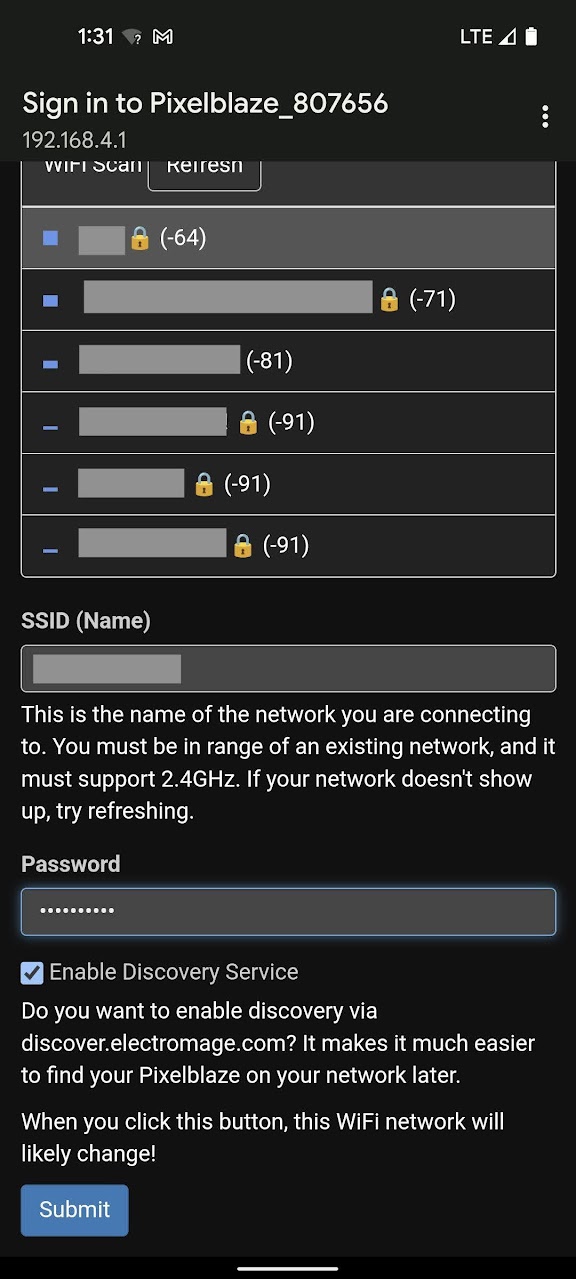
Click Submit to connect.
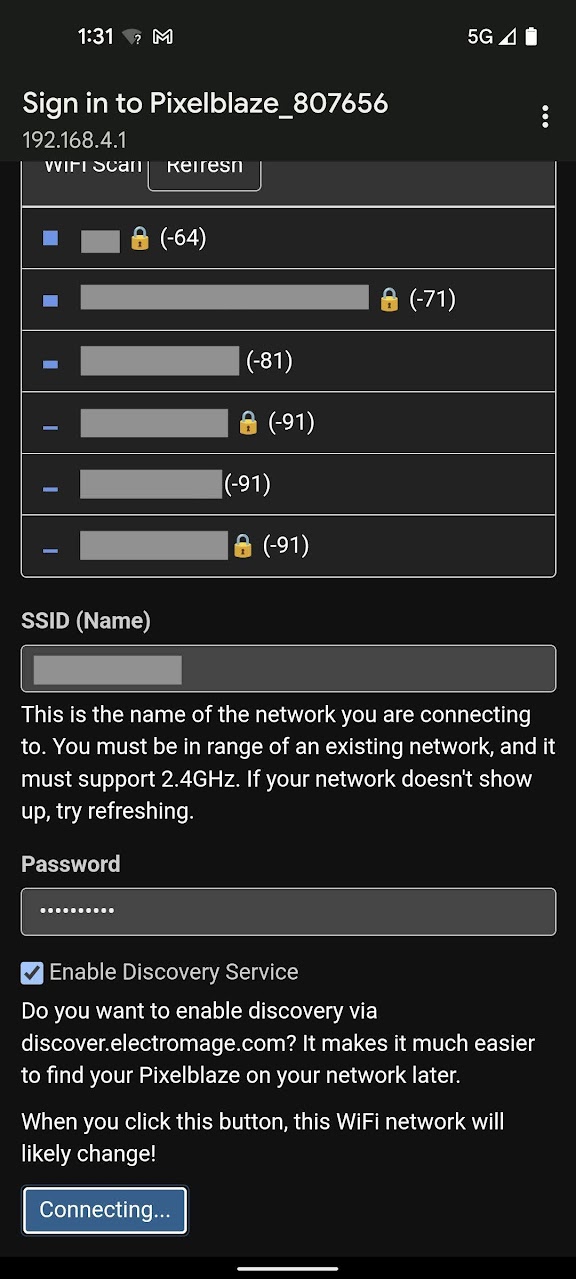
AP Mode - Create a stand-alone network
In this mode your Fibonacci will create its own wi-fi network that you can connect to from another device. Use this mode when outdoors or away from other wi-fi networks.
If you’ve already chosen Client Mode and followed the instructions above, skip down to Next Steps
After you’ve gotten your Fibonacci connected to a wi-fi network, there are a few settings you should check and be aware of.
Open your Fibonacci’s web app and click on the Settings tab.
We won’t go over every setting on this page, just the ones that are important for the use of your Fibonacci.
These settings should always be set to the following values to match the type and quantity of LEDs in your Fibonacci256:
You shouldn’t need to change anything on the Mapper tab. This page just contains the pixel map, which is the location of each of your Fibonacci’s LEDs. It’s used by the Pixelblaze controller in patterns.
If you ever do need to reset to the Fibonacci’s default map, use these values:
[[84.786,-73.323],[94.964,-74.919],[100.563,-78.109],[104.912,-82.577],[108.161,-88.175],[110.218,-94.751],[110.93,-102.12],[110.146,-110.063],[107.734,-118.324],[103.594,-126.618],[97.674,-134.636],[89.97,-142.049],[80.534,-148.523],[65.399,-142.5],[75.492,-138.188],[84.107,-132.656],[91.132,-126.214],[96.507,-119.176],[100.221,-111.849],[102.313,-104.525],[102.854,-97.469],[101.933,-90.917],[99.623,-85.061],[95.871,-80.036],[89.838,-75.784],[90.974,-79.96],[94.336,-85.71],[95.795,-91.761],[95.69,-98.155],[94.053,-104.734],[90.862,-111.272],[86.112,-117.506],[79.822,-123.155],[72.064,-127.928],[62.955,-131.537],[52.665,-133.704],[41.412,-134.176],[21.133,-117.56],[32.101,-121.189],[42.768,-122.859],[52.835,-122.73],[62.043,-121.005],[70.175,-117.915],[77.062,-113.713],[82.582,-108.661],[86.653,-103.018],[89.222,-97.021],[90.235,-90.852],[89.522,-84.532],[85.847,-76.907],[85.625,-81.376],[85.691,-88.406],[83.867,-94.376],[80.52,-99.748],[75.778,-104.447],[69.748,-108.287],[62.562,-111.051],[54.388,-112.516],[45.439,-112.475],[35.964,-110.749],[26.251,-107.194],[16.62,-101.713],[8.555,-77.313],[15.808,-86.07],[23.836,-93.025],[32.3,-98.156],[40.878,-101.496],[49.267,-103.126],[57.19,-103.168],[64.408,-101.778],[70.718,-99.123],[75.948,-95.365],[79.956,-90.598],[82.576,-84.63],[81.482,-79.336],[77.758,-86.084],[73.121,-90.349],[67.538,-93.215],[61.141,-94.753],[54.114,-94.881],[46.679,-93.491],[39.095,-90.491],[31.647,-85.818],[24.64,-79.454],[18.39,-71.43],[13.217,-61.832],[19.35,-37.404],[20.826,-48.496],[23.897,-58.482],[28.289,-67.165],[33.714,-74.402],[39.874,-80.103],[46.476,-84.225],[53.237,-86.769],[59.901,-87.764],[66.247,-87.247],[72.124,-85.187],[77.587,-81.163],[80.935,-75.305],[73.009,-80.343],[66.745,-81.716],[60.518,-81.321],[54.333,-79.354],[48.369,-75.861],[42.861,-70.874],[38.074,-64.452],[34.277,-56.694],[31.735,-47.746],[30.698,-37.799],[31.39,-27.095],[33.999,-15.915],[49.281,-10.1],[44.723,-20.122],[42.082,-30.051],[41.233,-39.578],[42.007,-48.43],[44.205,-56.376],[47.603,-63.223],[51.966,-68.825],[57.067,-73.069],[62.72,-75.863],[68.862,-77.076],[76.061,-76.228],[72.462,-73.763],[66.167,-71.754],[61.026,-68.245],[56.798,-63.427],[53.575,-57.437],[51.527,-50.431],[50.839,-42.593],[51.684,-34.151],[54.208,-25.366],[58.519,-16.53],[64.677,-7.962],[72.693,0],[88.39,-3.288],[79.358,-9.269],[71.985,-16.175],[66.327,-23.681],[62.387,-31.472],[60.119,-39.245],[59.436,-46.723],[60.223,-53.66],[62.358,-59.844],[65.752,-65.102],[70.498,-69.303],[78.036,-72.427],[75.457,-68.894],[70.771,-63.776],[68.125,-58.129],[66.995,-51.89],[67.347,-45.203],[69.229,-38.28],[72.692,-31.373],[77.764,-24.761],[84.427,-18.738],[92.617,-13.608],[102.218,-9.671],[113.062,-7.215],[135.58,-19.818],[124.282,-18.239],[113.63,-18.517],[103.885,-20.44],[95.267,-23.765],[87.944,-28.228],[82.035,-33.552],[77.617,-39.46],[74.725,-45.689],[73.374,-52.002],[73.6,-58.229],[75.635,-64.38],[80.004,-67.365],[78.315,-60.025],[78.899,-53.767],[81.116,-47.886],[84.829,-42.432],[89.959,-37.592],[96.414,-33.6],[104.067,-30.698],[112.749,-29.125],[122.248,-29.102],[132.307,-30.82],[142.634,-34.431],[154.655,-56.679],[146.056,-49.462],[137.026,-44.14],[127.897,-40.676],[118.98,-38.98],[110.557,-38.917],[102.873,-40.321],[96.137,-42.999],[90.518,-46.756],[86.155,-51.412],[83.179,-56.879],[81.82,-63.46],[83.431,-69.535],[85.865,-61.023],[89.583,-55.832],[94.469,-51.942],[100.386,-49.235],[107.172,-47.803],[114.628,-47.784],[122.519,-49.31],[130.581,-52.495],[138.518,-57.409],[146.015,-64.078],[152.745,-72.477],[158.377,-82.522],[151.017,-97.199],[147.613,-86.69],[142.854,-77.546],[137.039,-69.91],[130.478,-63.871],[123.476,-59.463],[116.328,-56.677],[109.307,-55.464],[102.657,-55.753],[96.582,-57.482],[91.219,-60.694],[86.504,-66.046],[90.885,-65.574],[96.865,-62.875],[103.032,-62.029],[109.416,-62.758],[115.85,-65.03],[122.102,-68.846],[127.91,-74.196],[132.992,-81.028],[137.063,-89.248],[139.846,-98.712],[141.079,-109.226],[140.53,-120.547],[126.686,-128.768],[129.331,-118.227],[130.122,-108.121],[129.238,-98.73],[126.892,-90.289],[123.32,-82.991],[118.774,-76.98],[113.507,-72.362],[107.754,-69.209],[101.7,-67.588],[95.382,-67.647],[87.913,-70.261],[92.097,-71.345],[98.922,-72.012],[104.667,-74.426],[109.705,-78.297],[113.954,-83.498],[117.232,-89.908],[119.329,-97.375],[120.038,-105.708],[119.171,-114.679],[116.57,-124.021],[112.119,-133.434],[105.749,-142.59]]
Fibonacci comes with a wide variety of patterns built-in. By default, it will automatically play a playlist of pre-selected patterns.
The sequencer can be configured via the web interface over wi-fi in the following ways:
Pattern sequencer options:
You can download this backup file LED Cube 8x8x8.pbb and restore it with the Restore from Backup button at the bottom of the PixelBlaze web UI’s Settings tab/page.
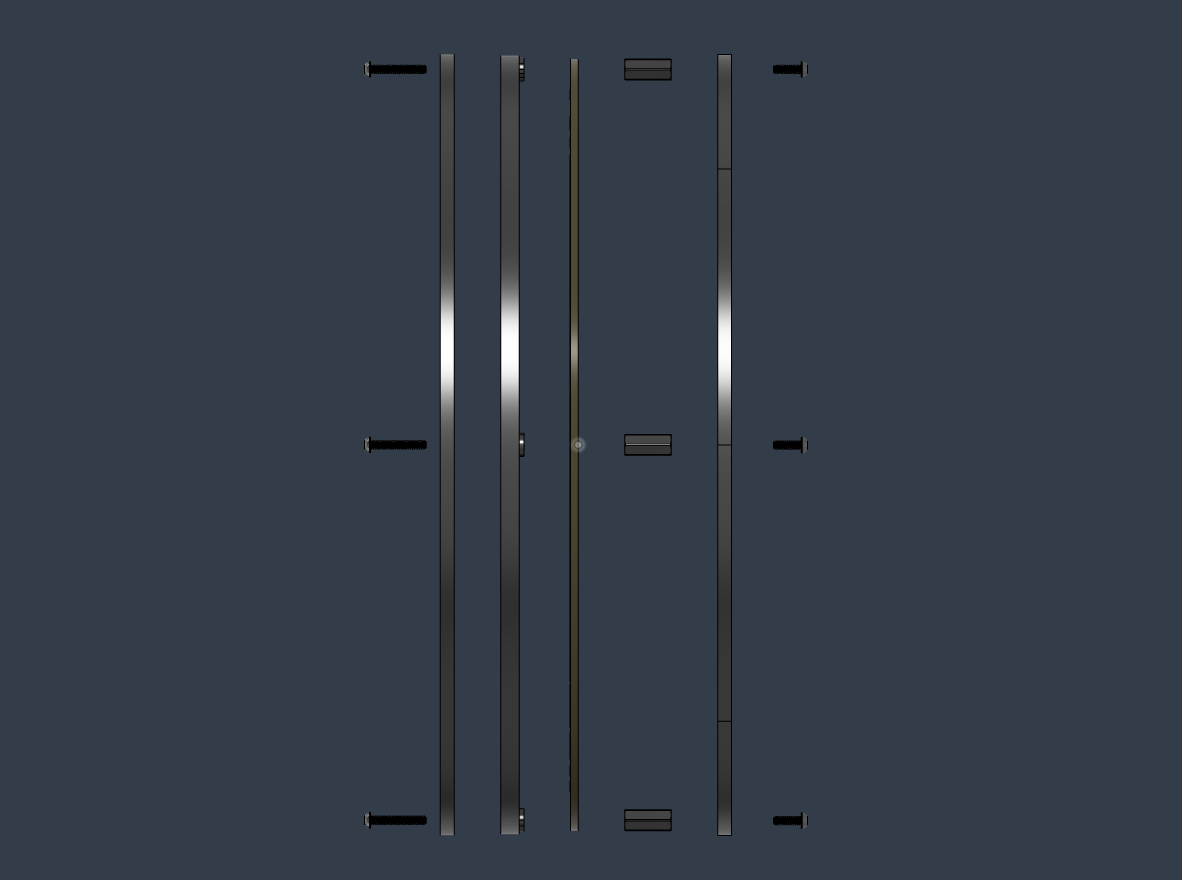
Pixelblaze output:
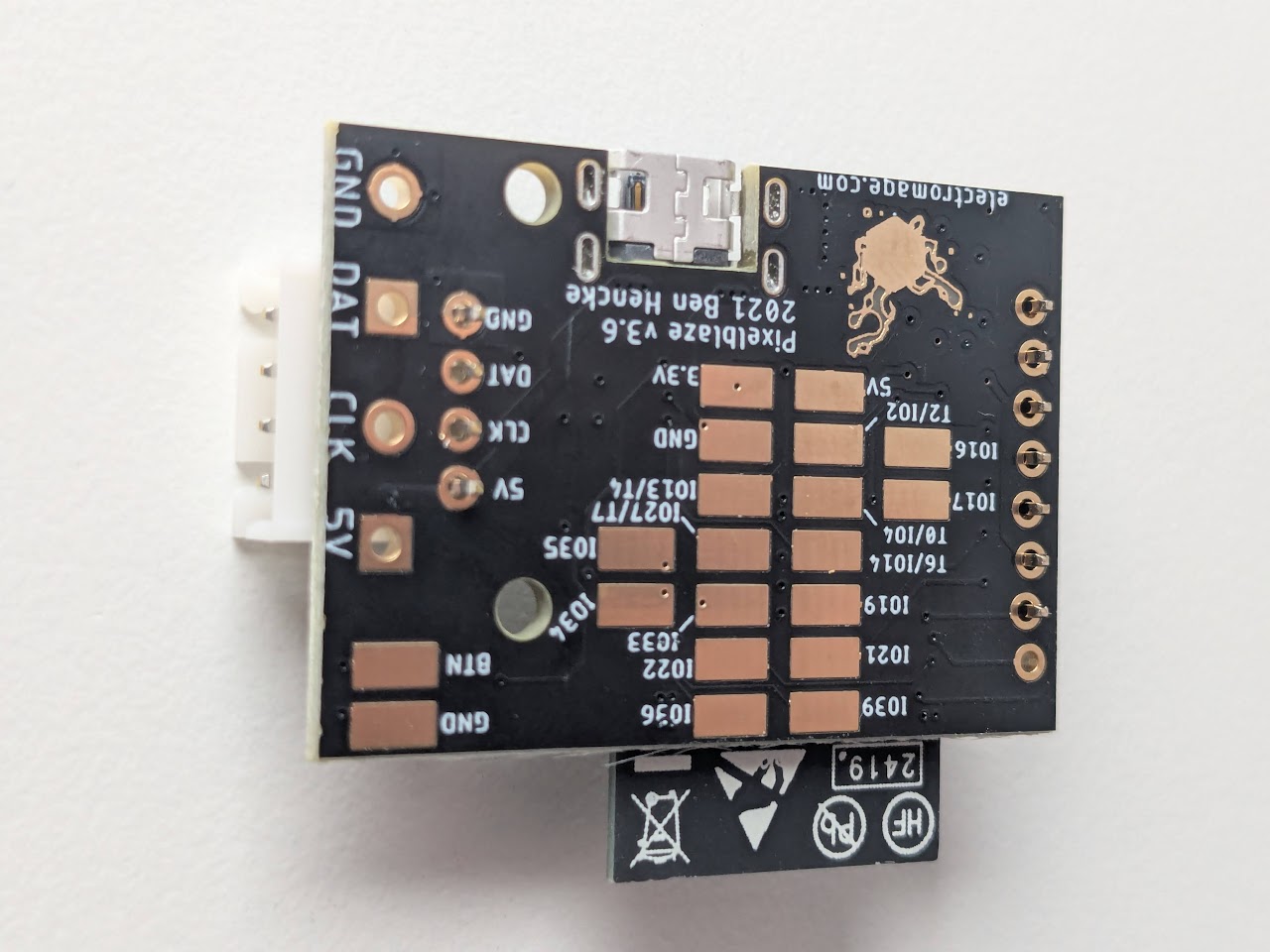
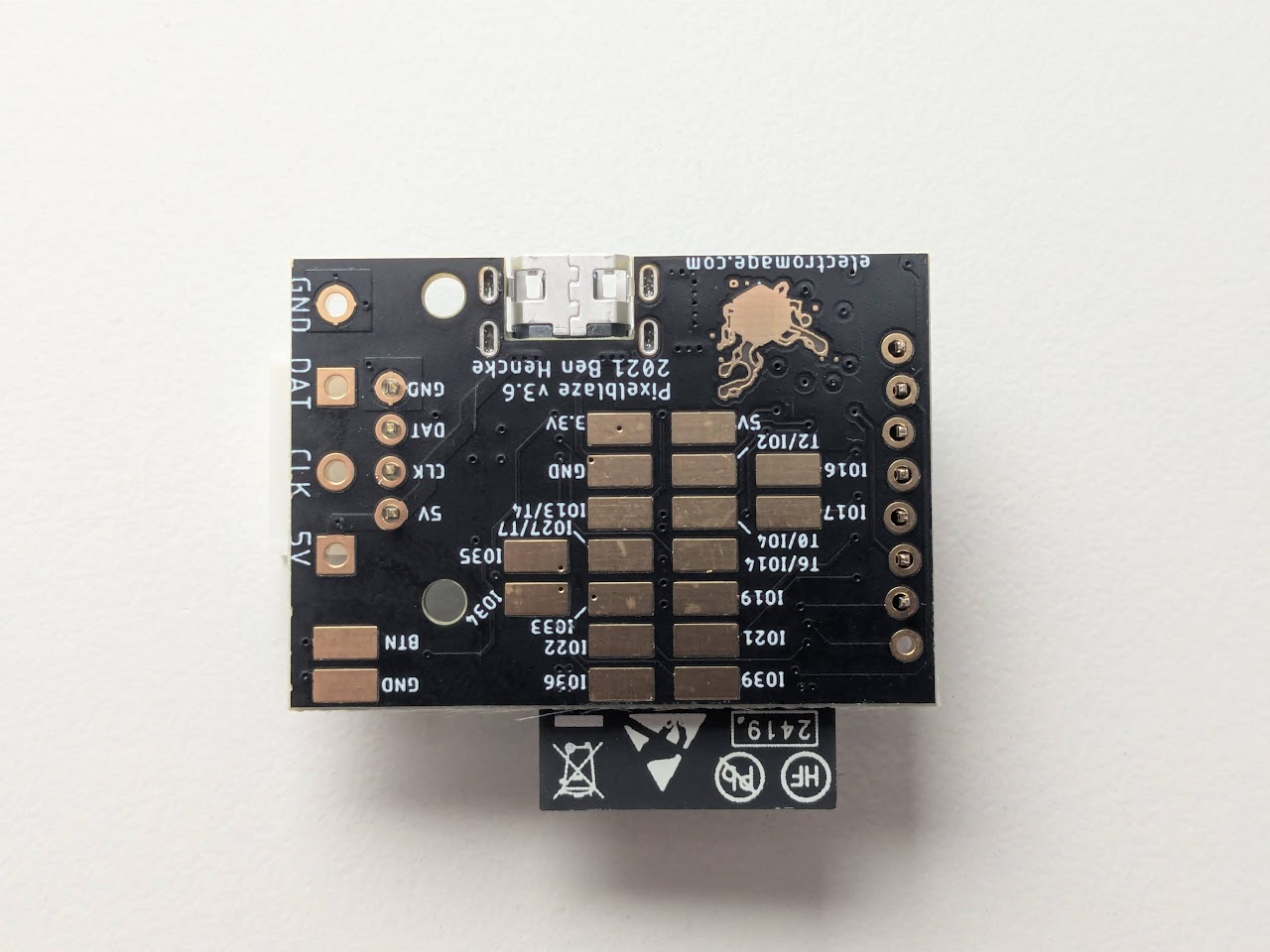
Pixelblaze expansion pins:
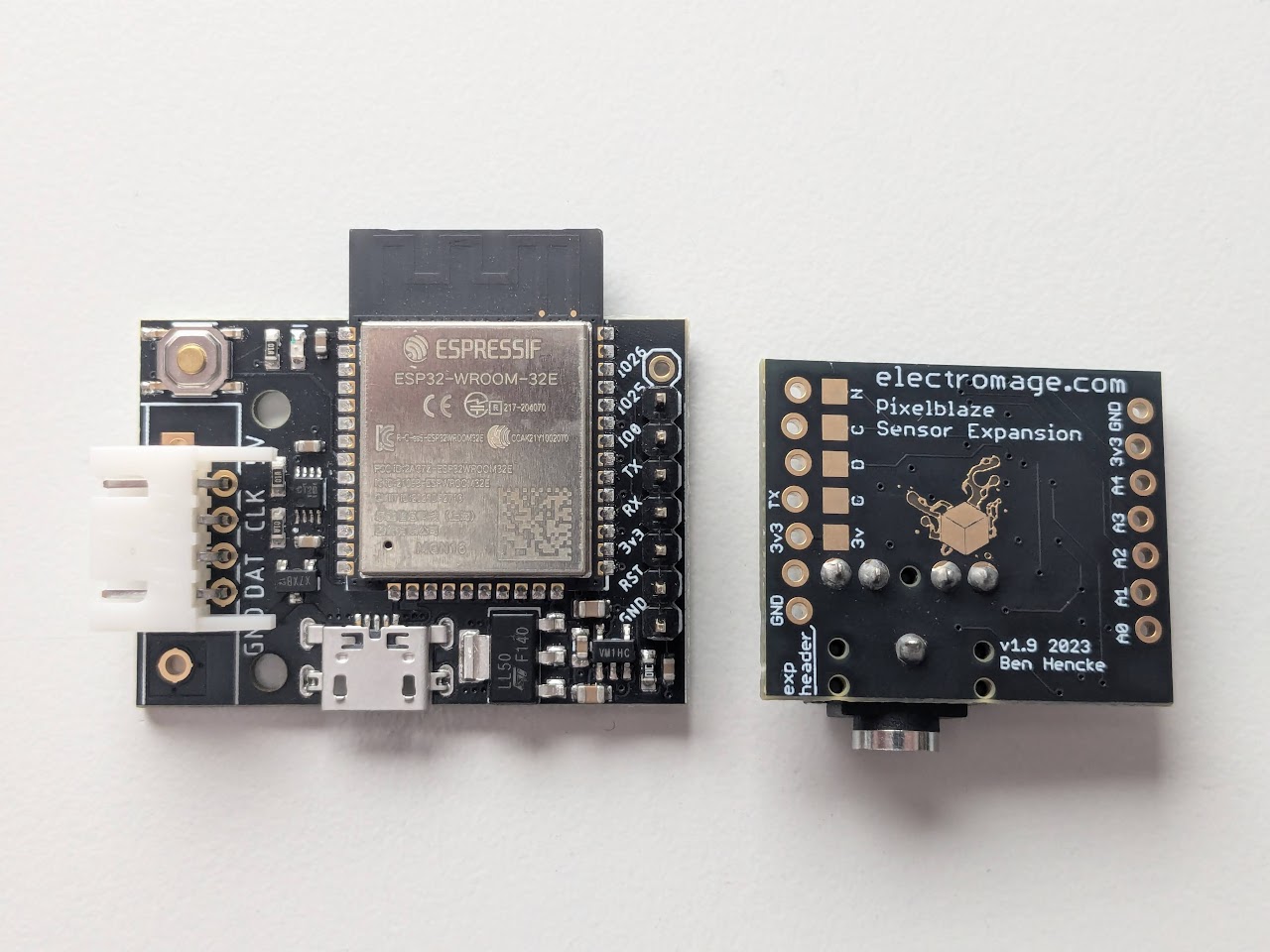
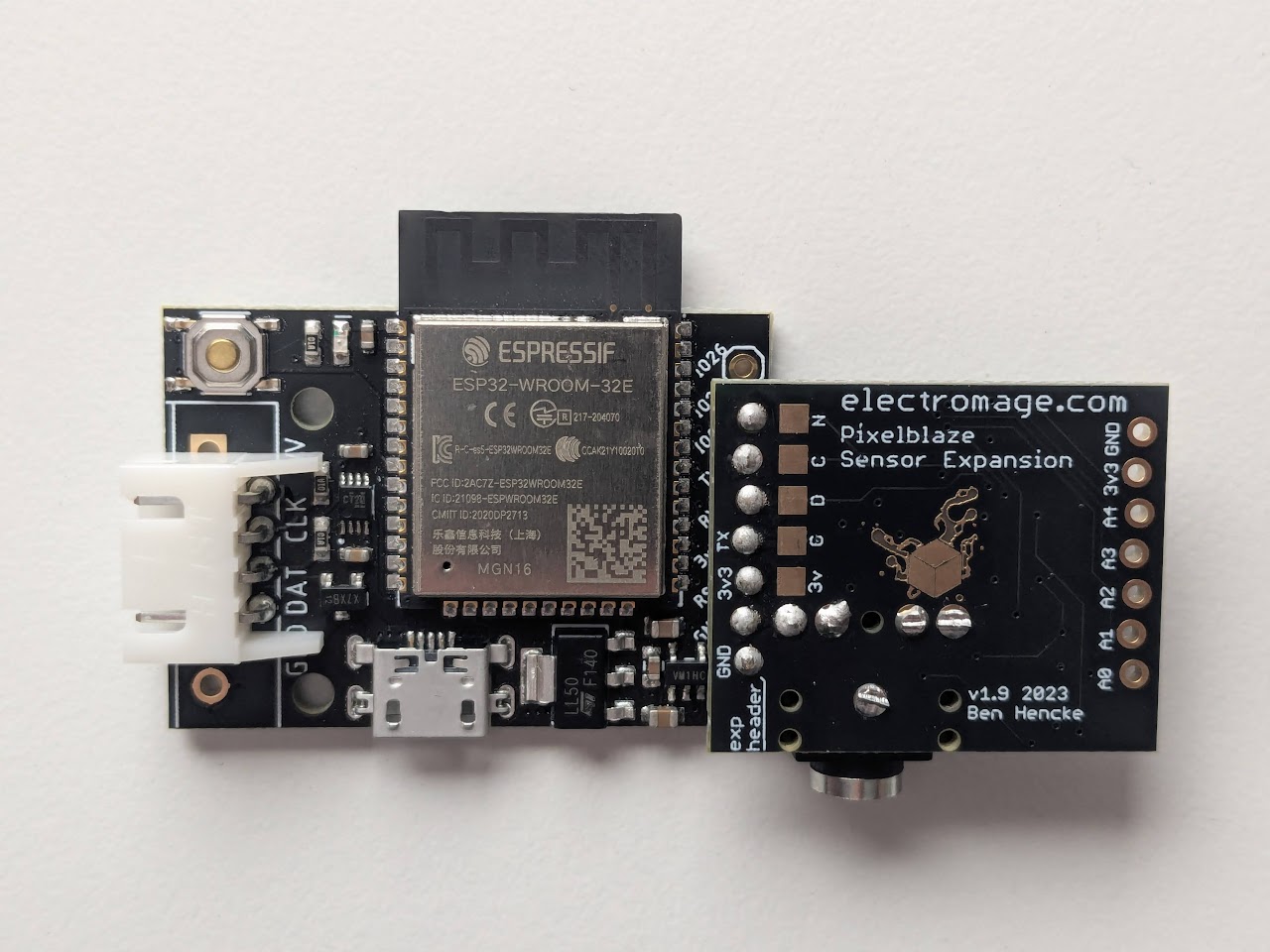
Pixelblaze Sensor Expansion Board:
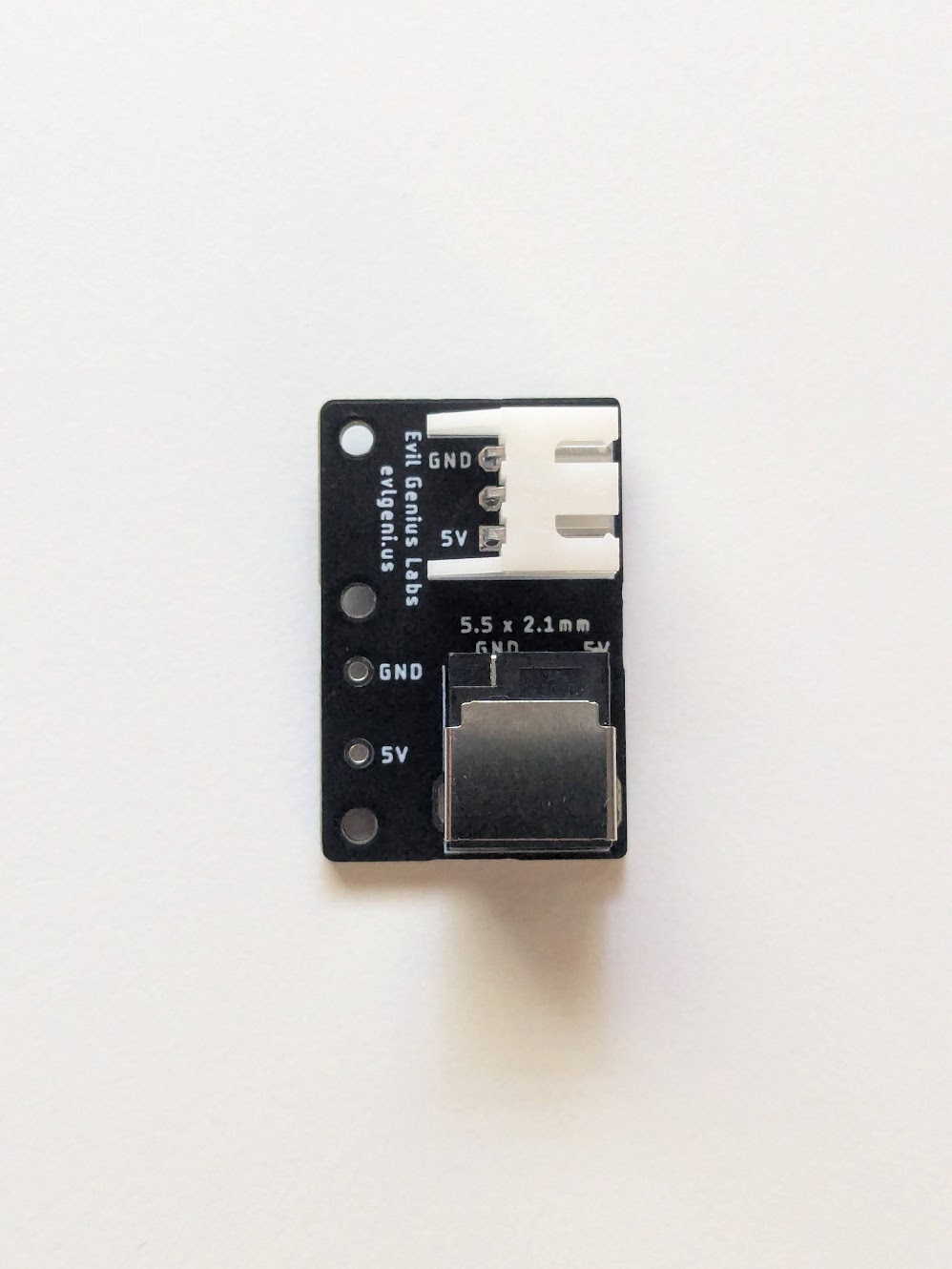
Insert the power connector into the power board as shown, flip it over, and solder the pins.
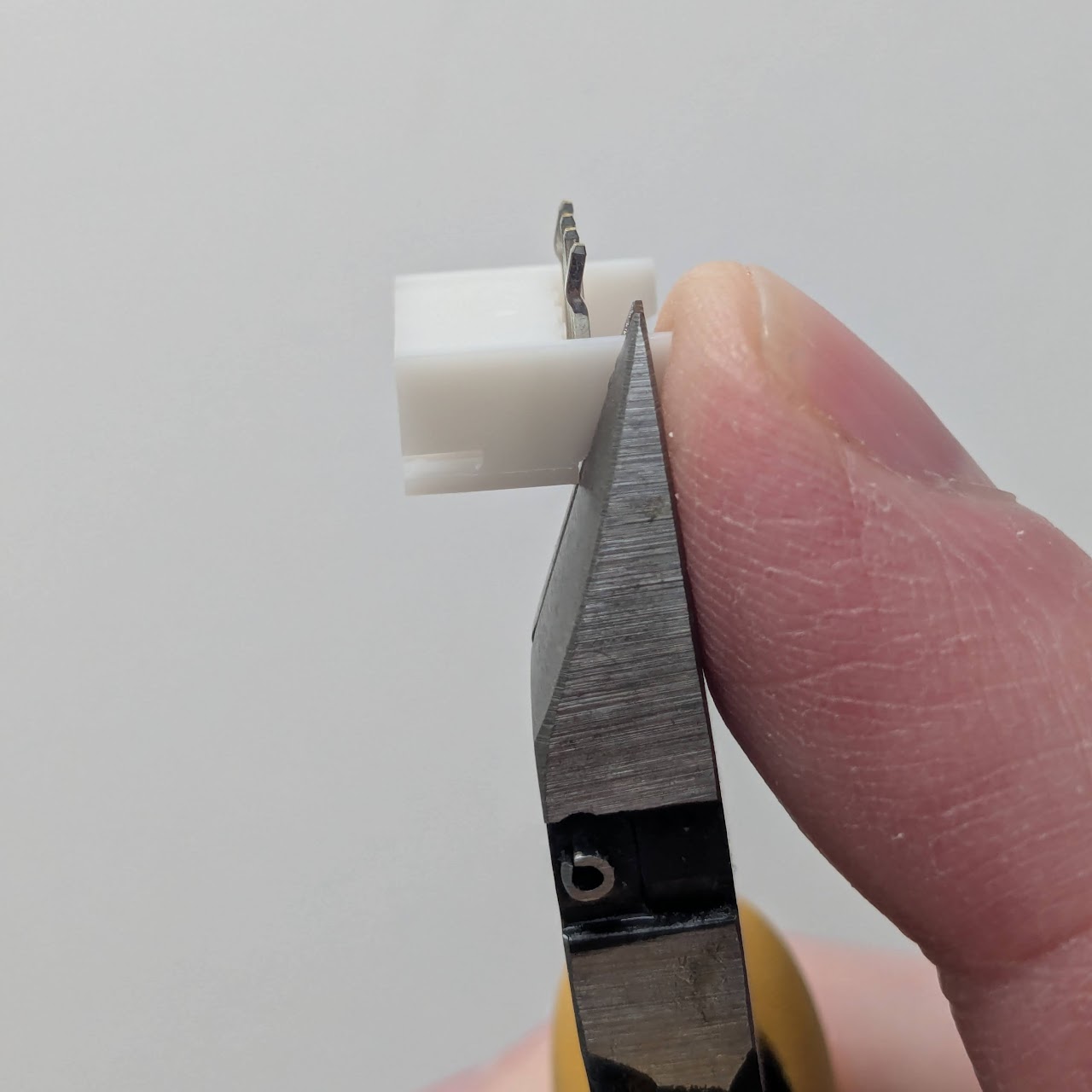
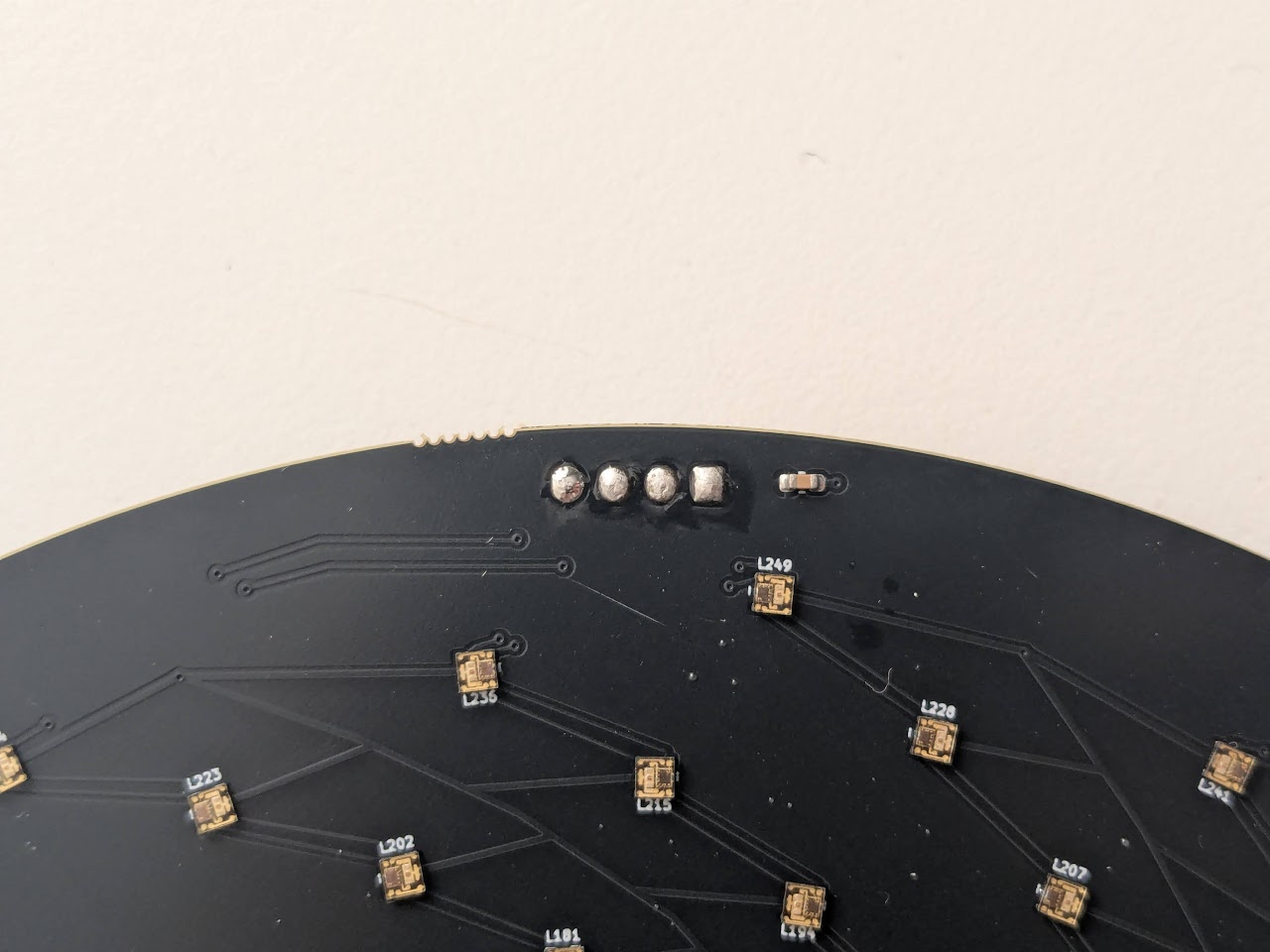
The plastic fins on the JST-XH connectors may extend past the edge of the LED PCB when inserted. If so, they can be trimmed with a pair of wire cutters:
Insert the JST-XH connectors with the white plastic on the back of the LED PCB. The metal legs should be on the front, the side with the LEDs:
Flip the board over and solder all of the pins on both connectors.
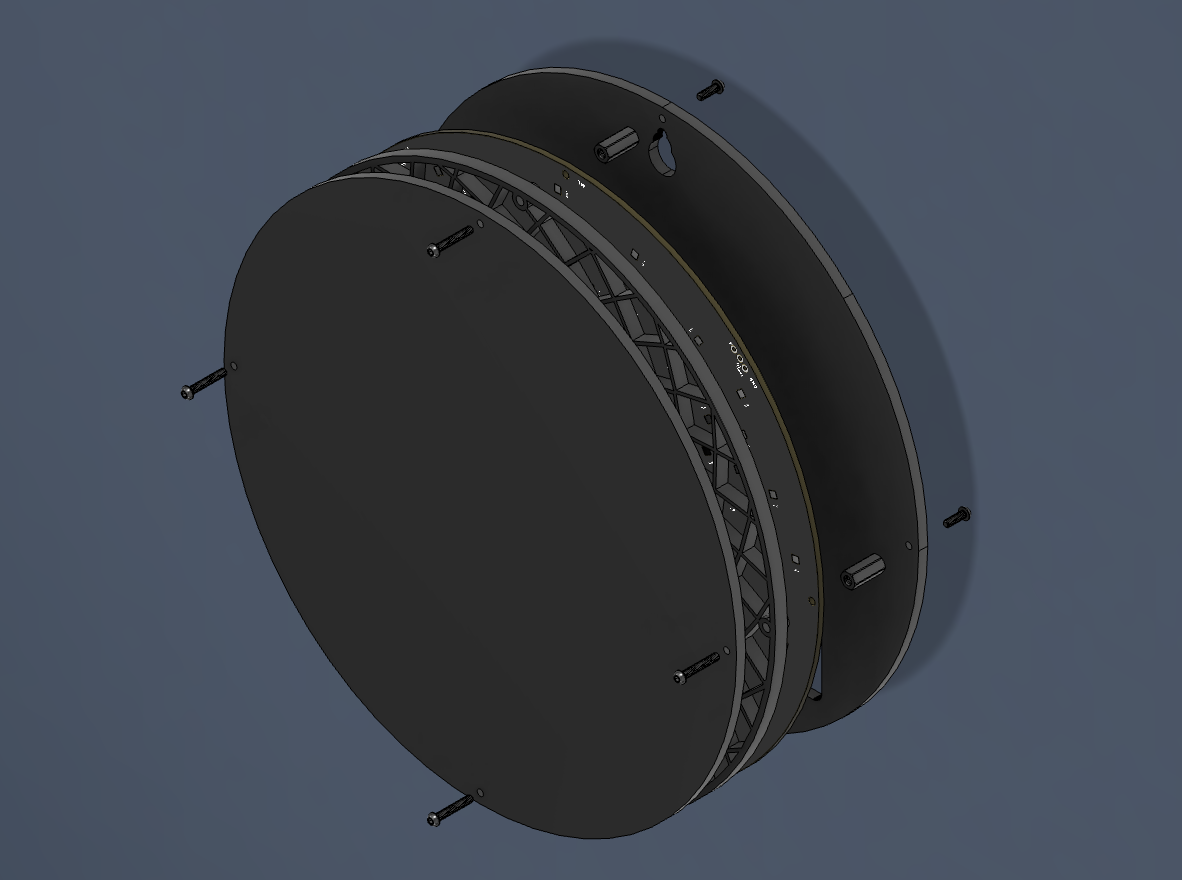
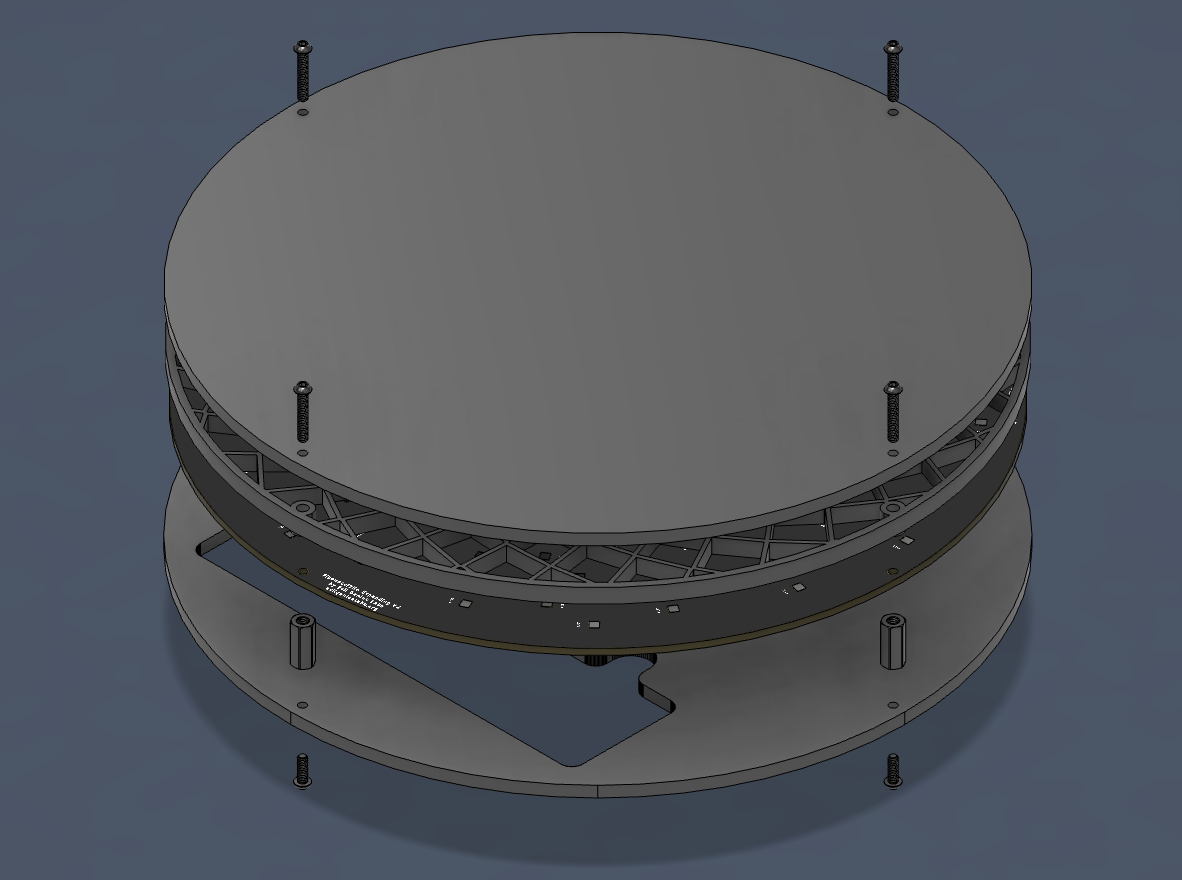
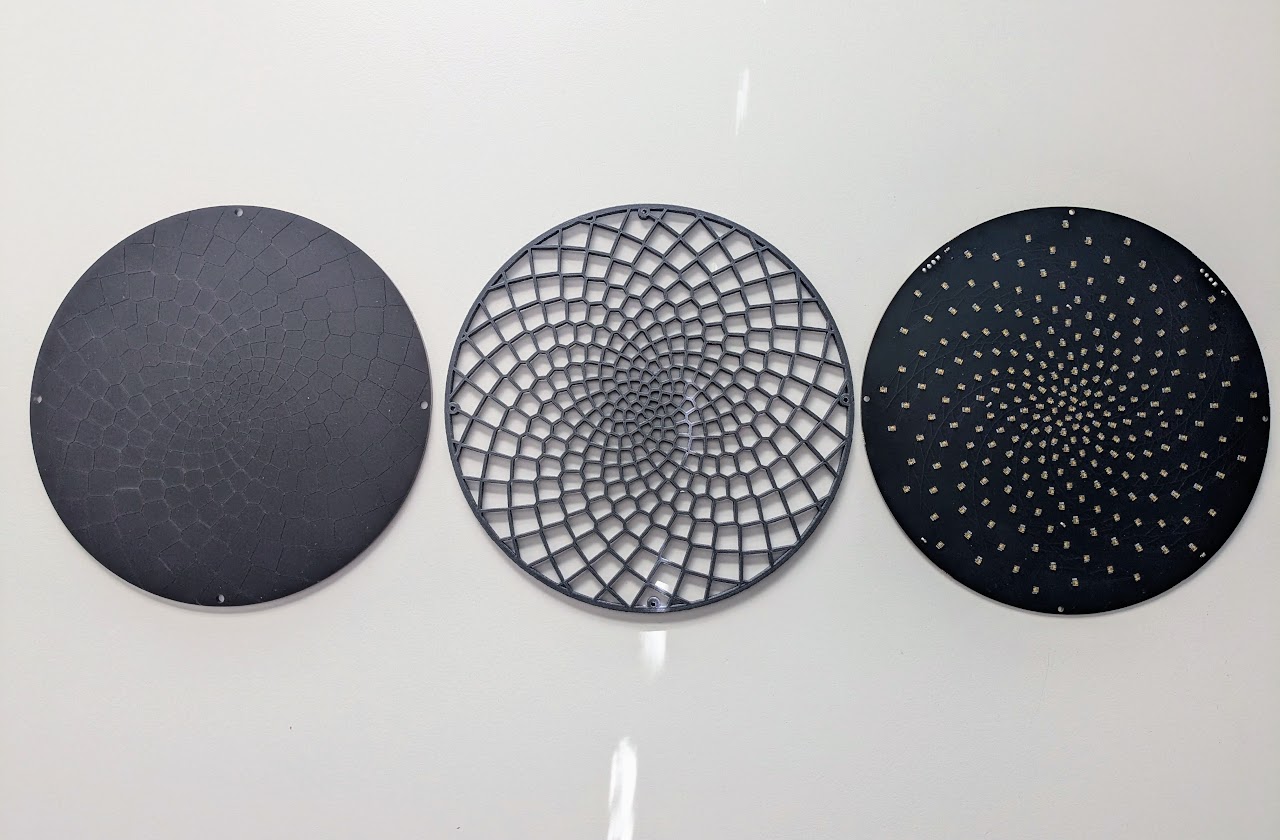
Arrange the acrylic front, diffuser grid, and LED PCB as shown. Note the position of the Voronoi grid on the front and grid pieces, they should line up. The connectors on the LED PCB should be on the top.
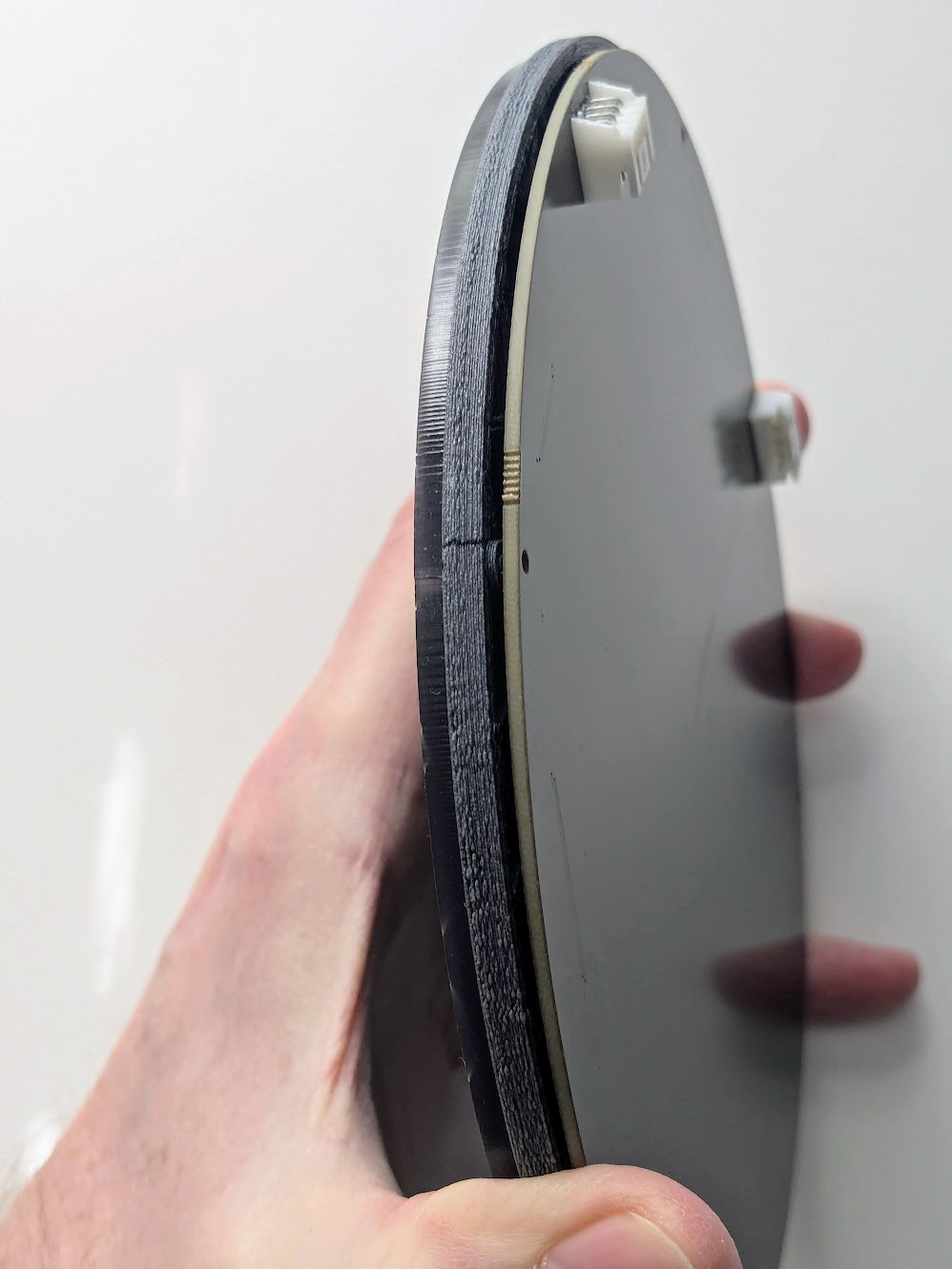
Flip the acrylic front over, then flip the Voronoi grid over and place it’s flat side on the glossy side of the acrylic front. Then flip the LED PCB over and place it on the grid’s feet, lining up all of the mounting holes on all three pieces.
Insert M2x12mm screws into each of the holes in the front of the acrylic, making sure each screw extends through the acrylic, grid, and PCB.
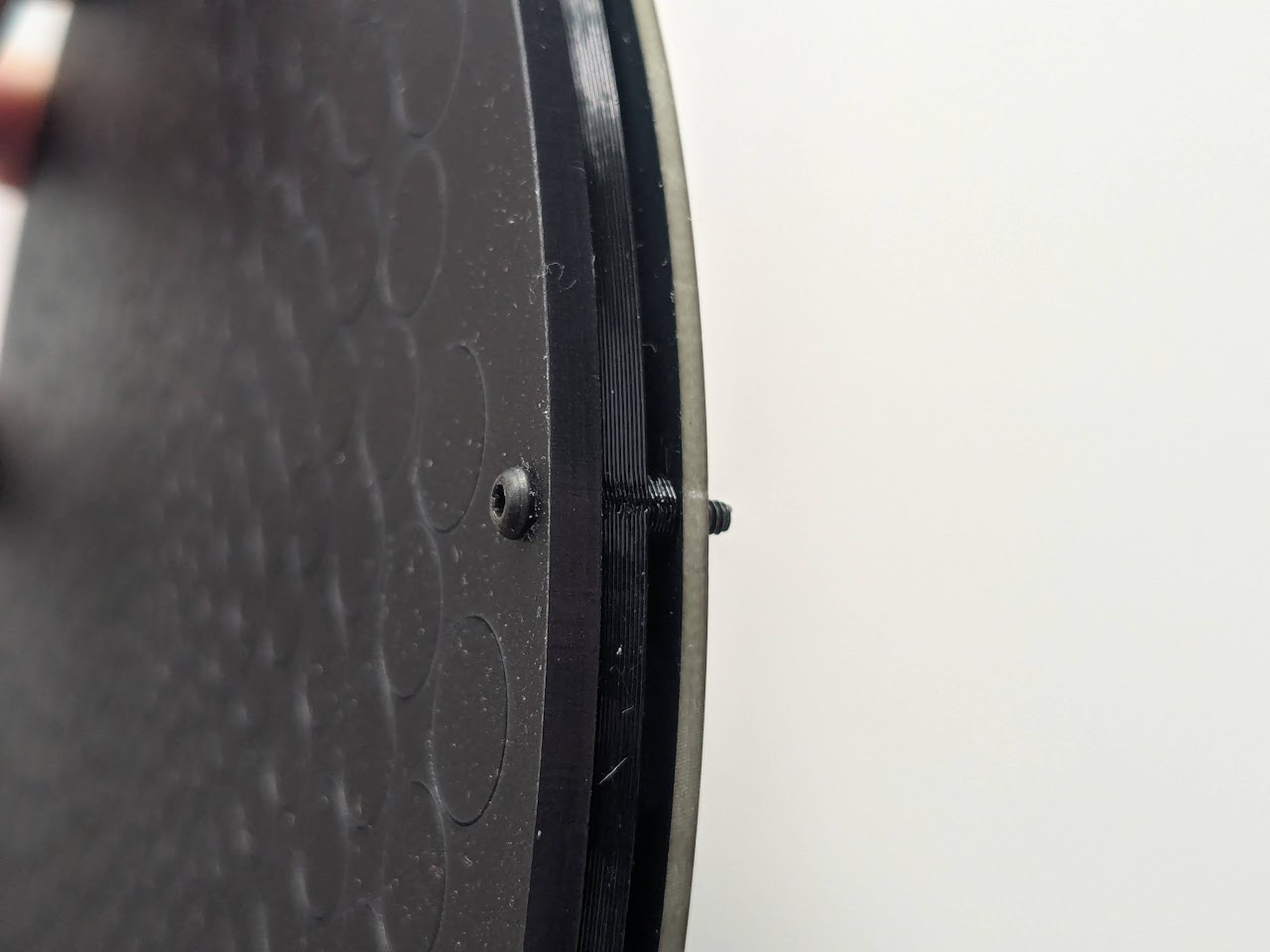
Hand-tighten M2x10mm standoffs onto each of the screws.
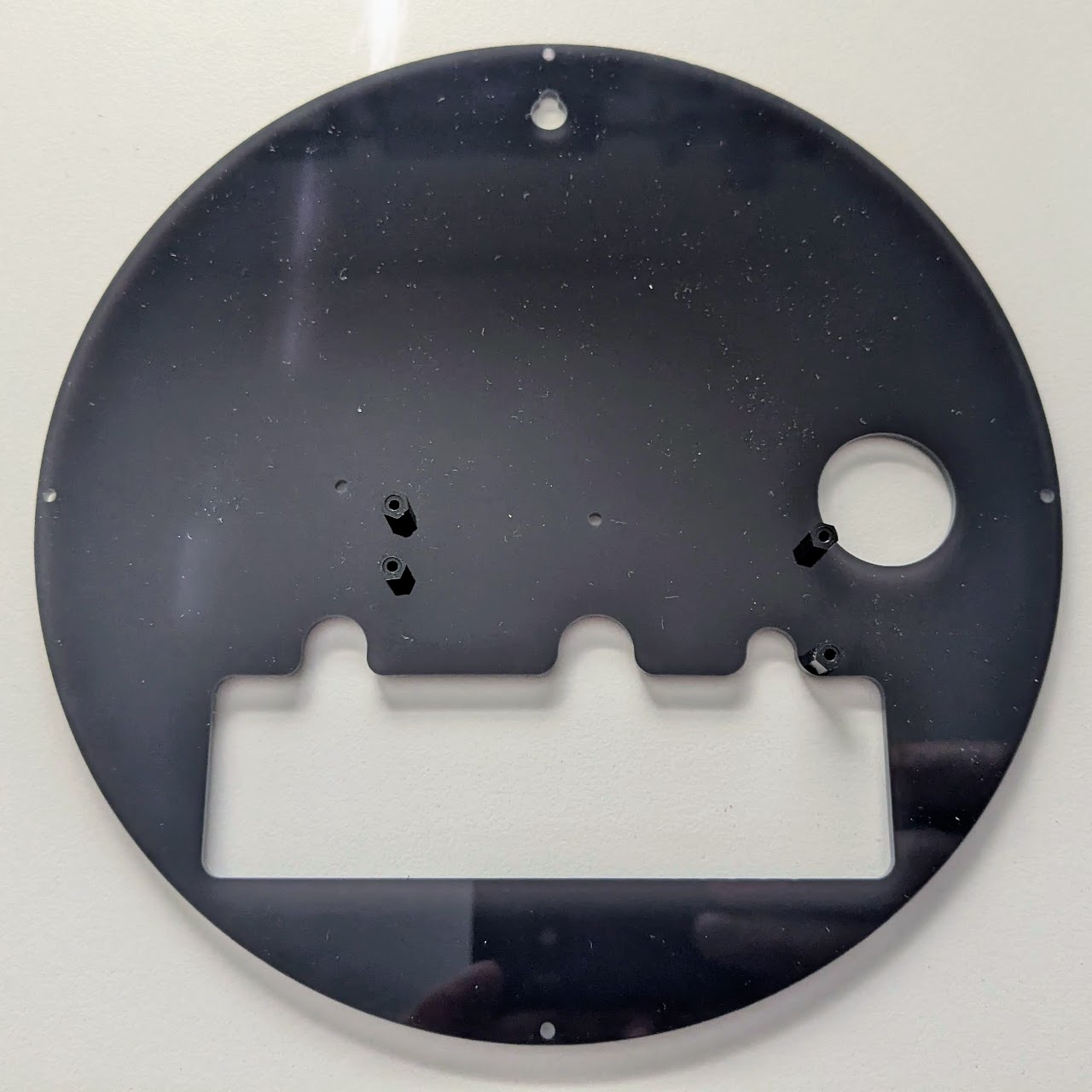
Insert M2x5mm screws into the four holes shown here, starting from the matte side, out of the glossy side, and hand-tighten M2x7mm standoffs onto them.
Insert M2x10mm screws into the two holes shown here, and hand-tighten M2x10mm standoffs onto them.
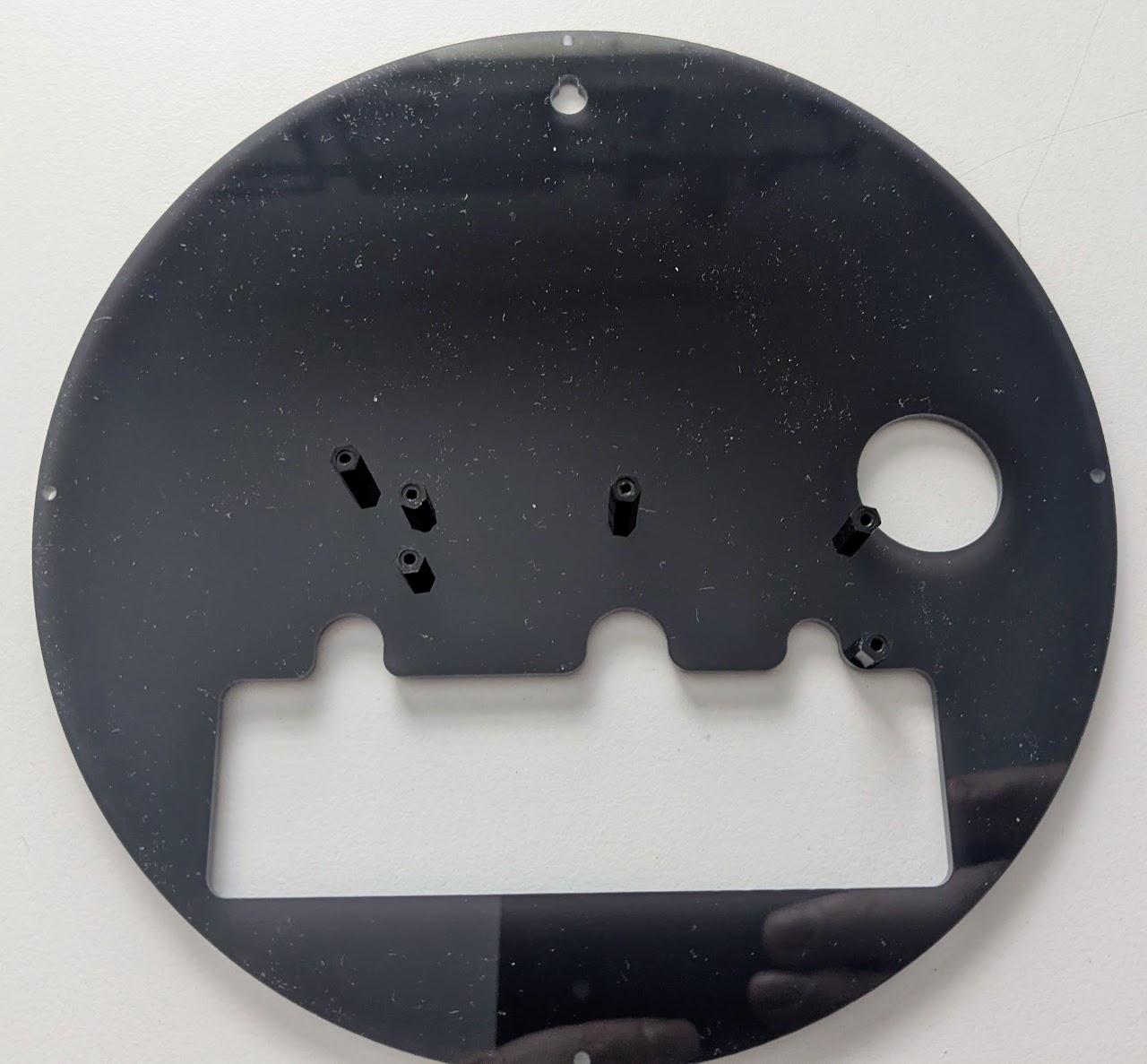
Insert M2x10mm screws into the two holes shown here, and hand-tighten M2x10mm standoffs onto them.
Place the Pixelblaze and power board into the standoffs, insert M2x5mm screws into the holes shown here, and hand-tighten them.
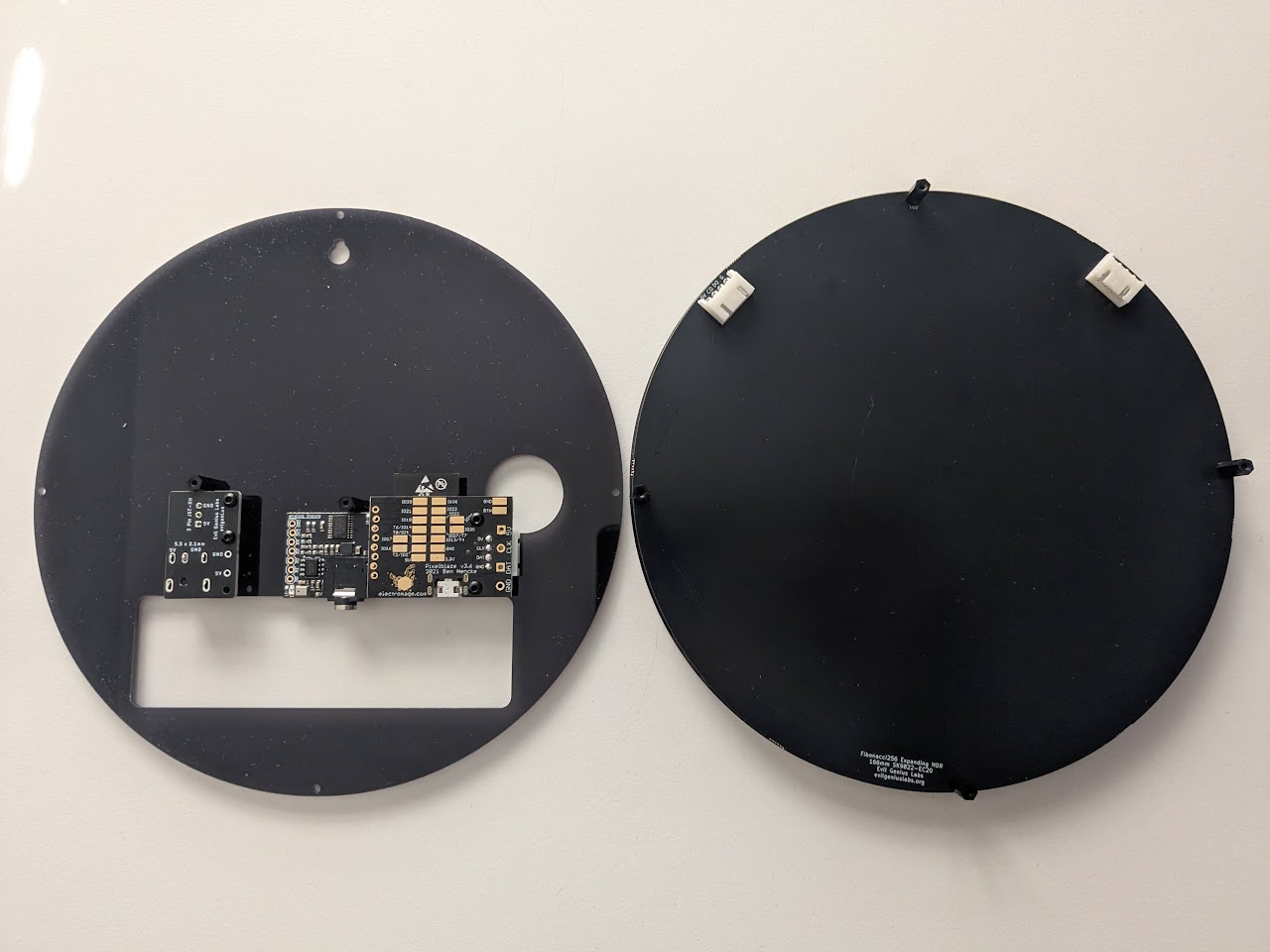
Insert either end of the four wire harness into the connector on the Pixelblaze.
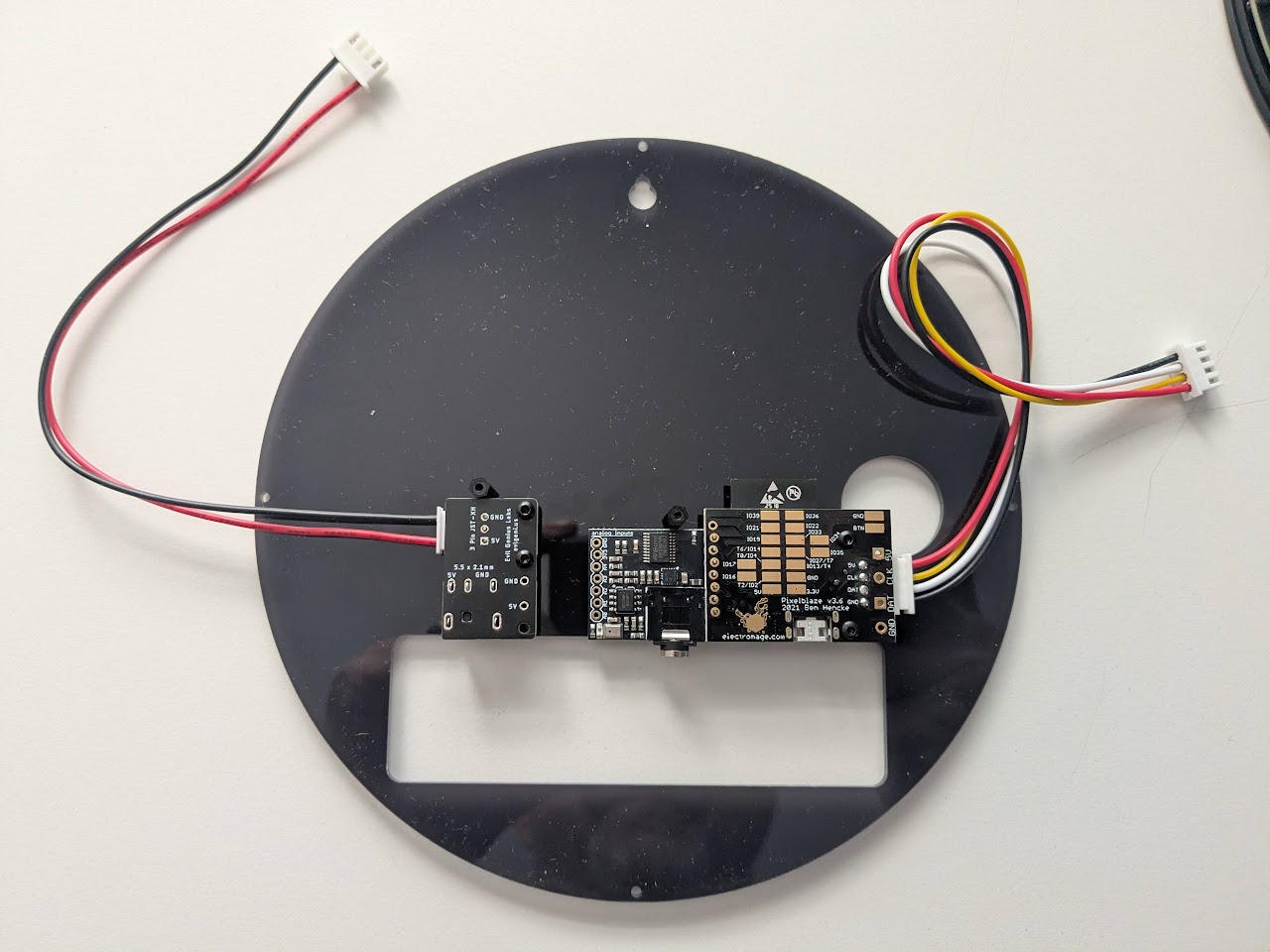
Bend a loop into both wires, and cross them in the middle, as shown:
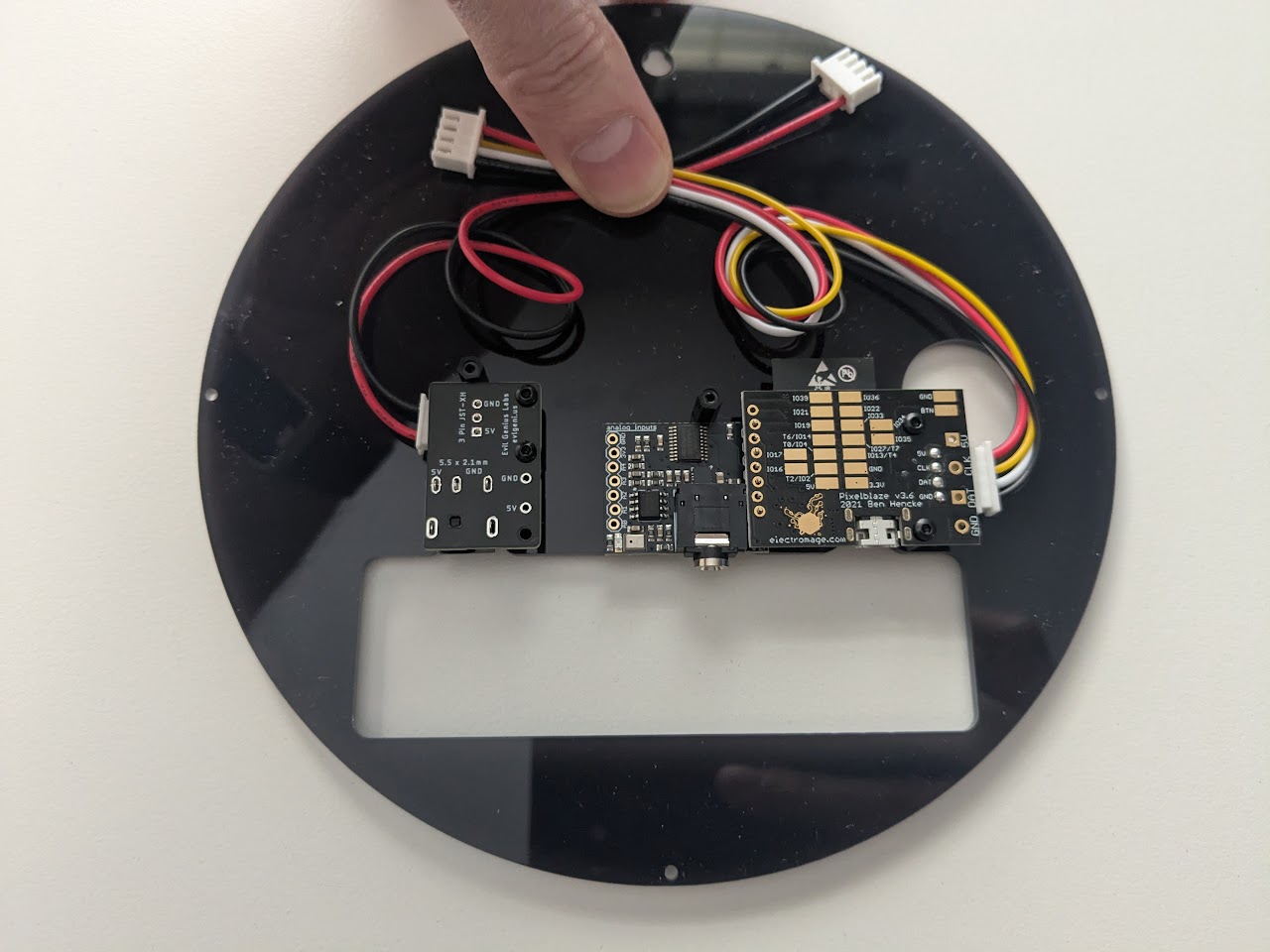
Holding the wires, flip the back panel over place it over the LED PCB as shown:
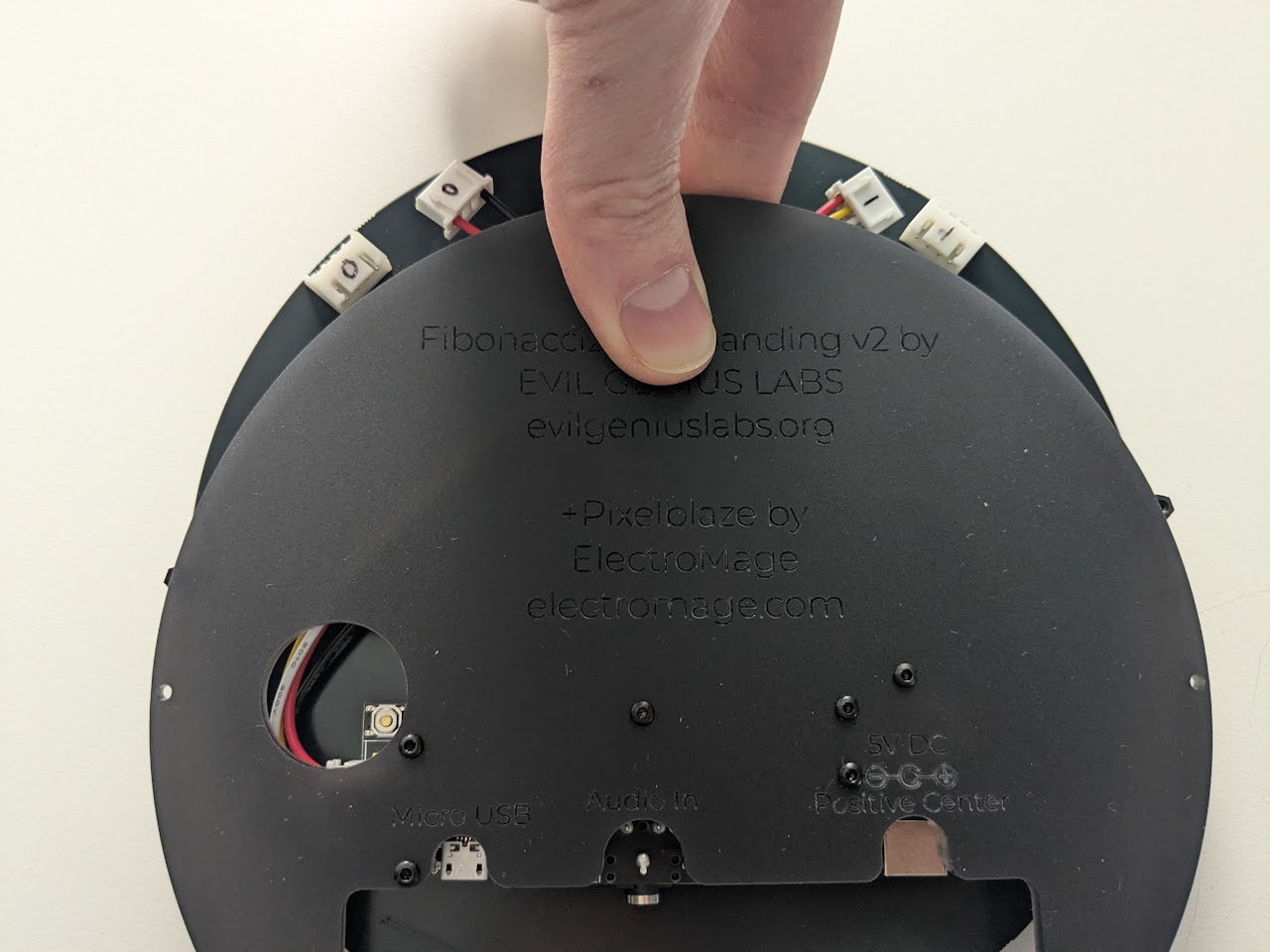
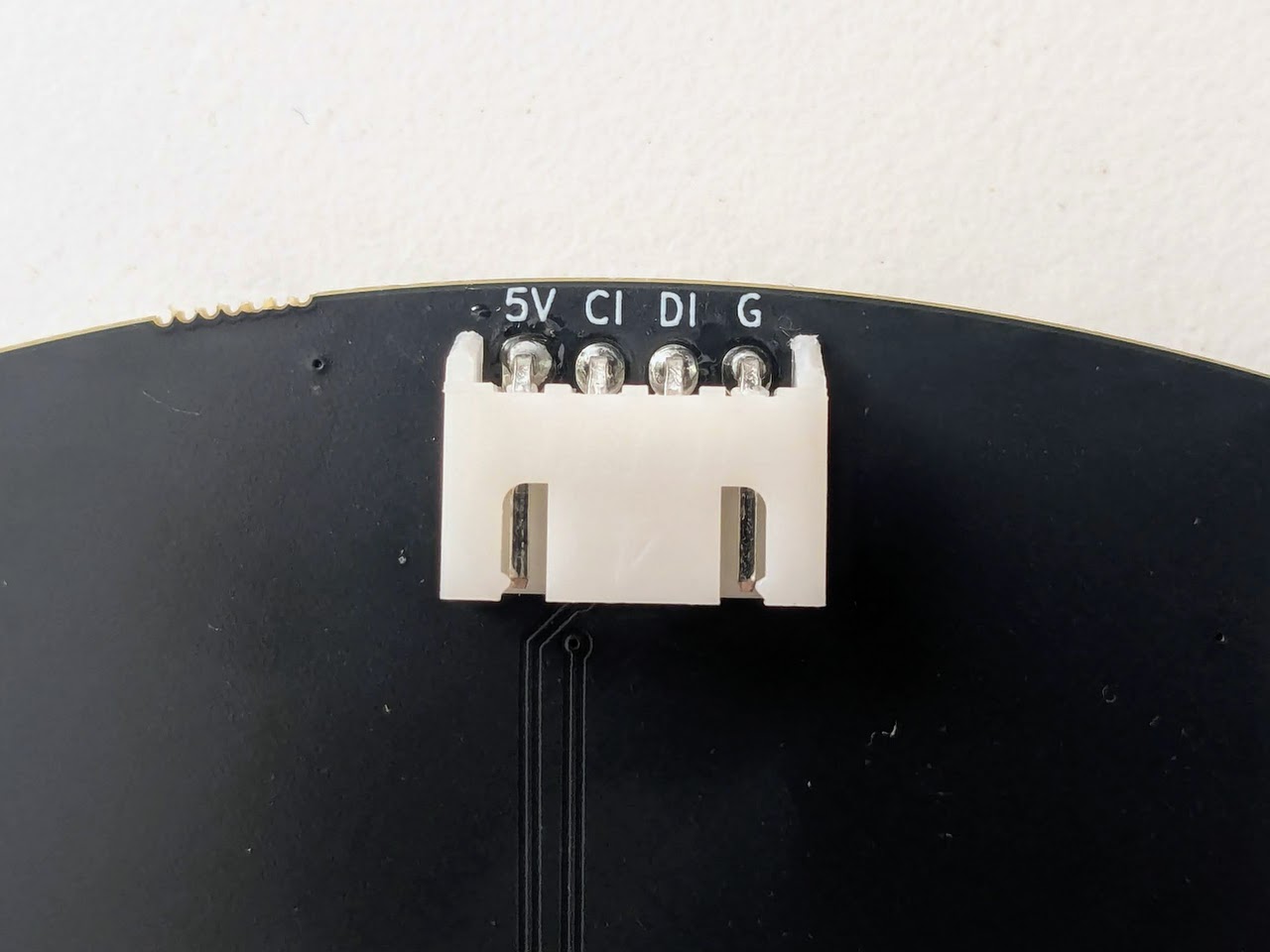
Insert the four-wire harness into the input connector (marked 5V, CI, DI, G) on the right side of the back of the LED PCB.
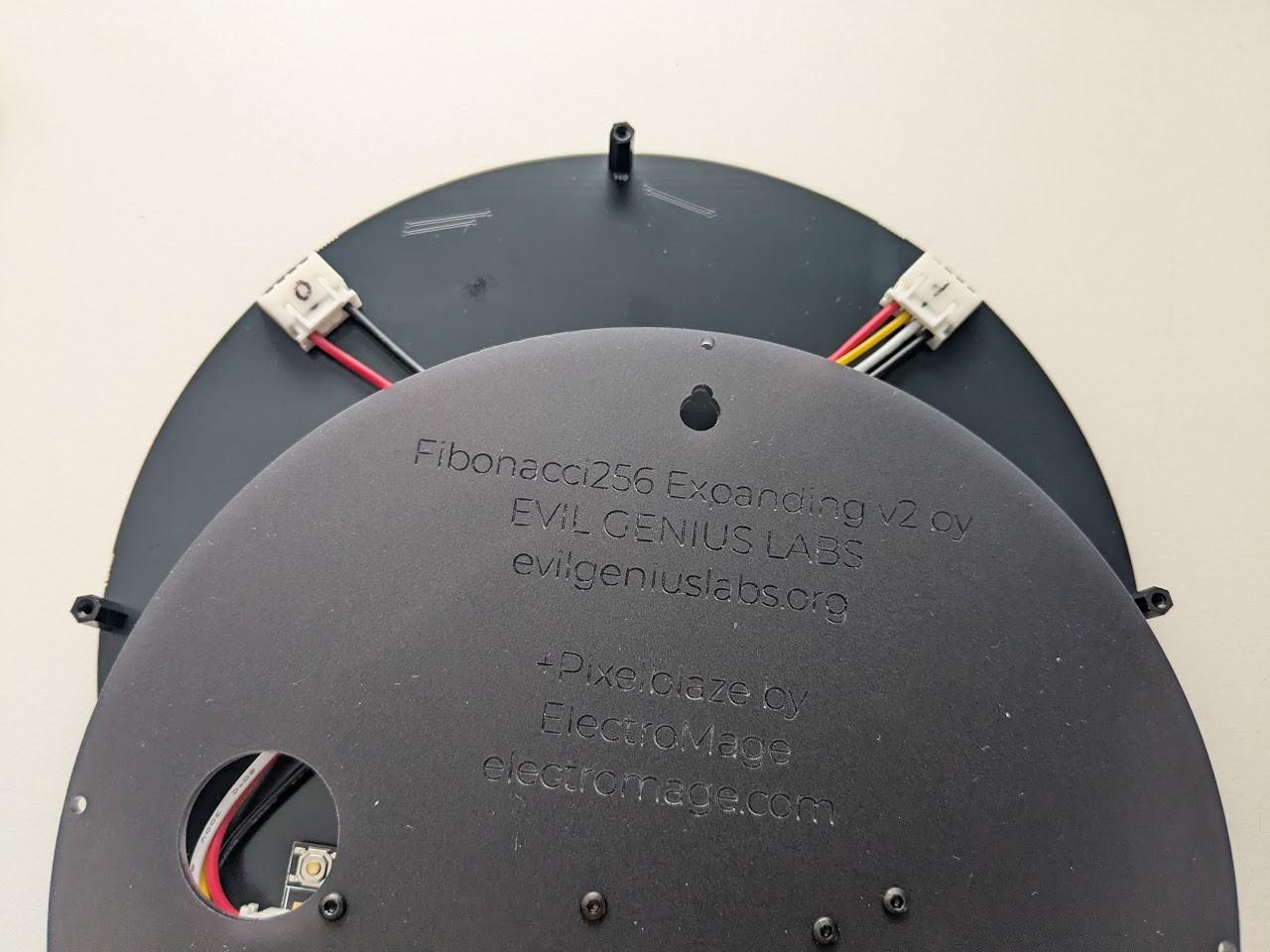
Place the back panel onto the standoffs, lining up the screw holes. Insert and hand-tighten M2x6mm screws.